
Core Product Tutorials
How to Customize Geography and Language in Axy.digital
Axy.digital lets you customize the geography and language of your marketing engine. This helps your campaigns align with the markets you sell into and the language your audience actually uses. Axy.digital also detects the language on your website and in your uploaded materials, then aligns the engine and generated campaigns with that language. This is useful for brands marketing to local markets, regional audiences, or non-English-speaking customers.
On this page
- Before you start
- Step 1: Open your marketing strategy
- Step 2: Set your geographic focus
- Step 3: Open your channel plan
- Step 4: Add language instructions
- Step 5: Let Axy.digital detect your existing language
- Step 6: Review generated content for local fit
- Step 7: Update settings as your market changes
- FAQ
- Best practices
Before you start
Make sure you have:
- Completed onboarding
- Added your website
- Uploaded relevant brand or product materials
- Approved or reviewed your marketing strategy
- Reviewed your channel plans
Axy.digital will use your website, materials, strategy, and channel guidelines to align campaigns with your geography and language.
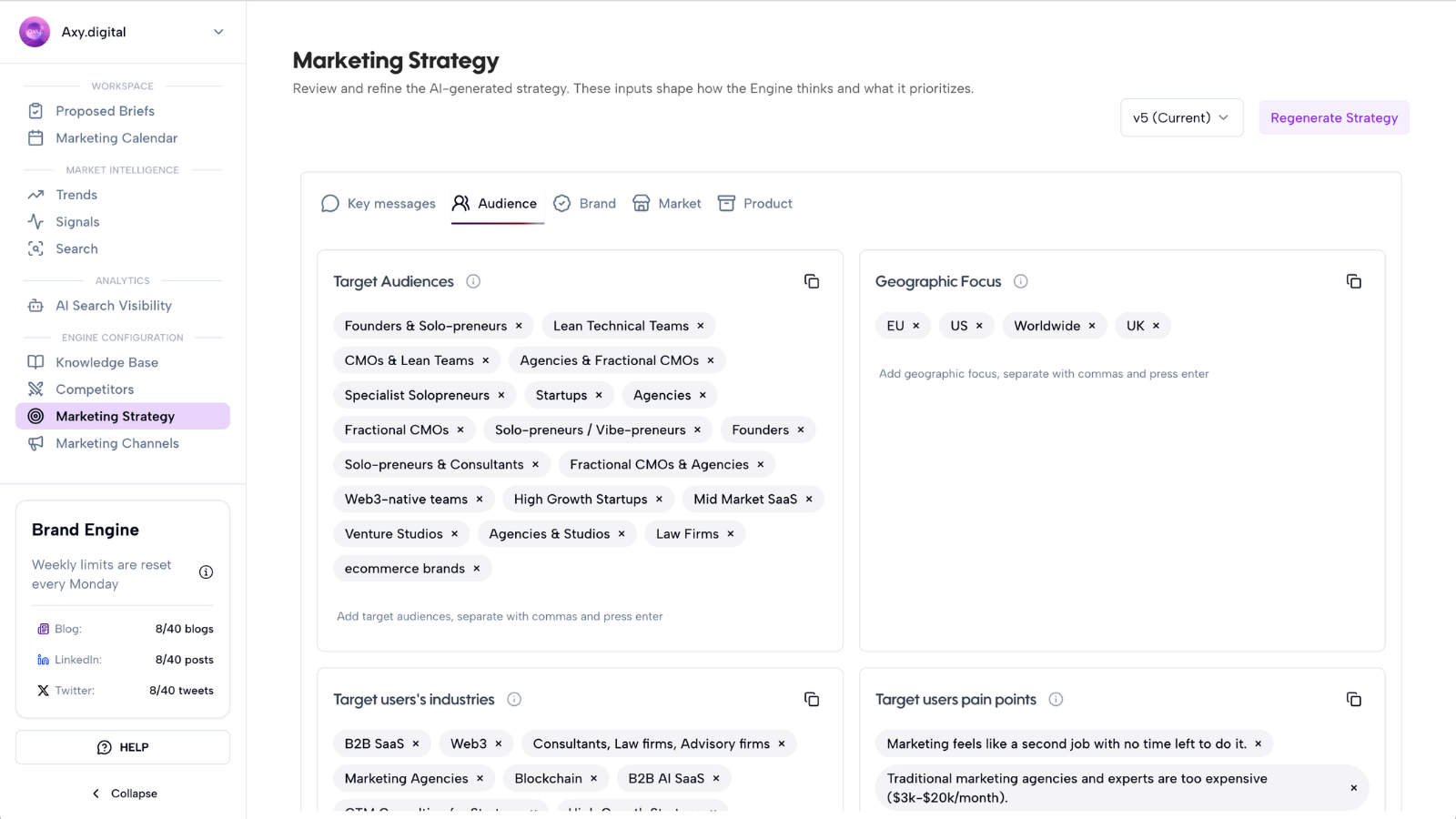
Step 1: Open your marketing strategy
Go to: Marketing Strategy → Audience → Geographic Focus
This is where you define the markets your engine should prioritize. Your geographic focus can include:
- Countries
- Regions
- Cities
- Local markets
- Language markets
- Expansion markets
- Priority customer locations
For example:
- United Kingdom
- Singapore
- DACH
- Portugal
- United States
- Dubai
- Southeast Asia
- French-speaking Europe
This tells Axy.digital which market context to prioritize when generating insights, briefs, and campaigns.
Step 2: Set your geographic focus
Add or update the geography you want Axy.digital to focus on. This affects how Axy.digital interprets:
- Market signals
- Search demand
- Competitor context
- Local narratives
- Regional terminology
- Customer pain points
- Campaign angles
- GEO, LinkedIn, and X content
For example, a law firm targeting Singapore should not receive the same campaign suggestions as a law firm targeting the United Kingdom.
Geographic focus helps Axy.digital localize the engine.
Step 3: Open your channel plan
To customize language, go to: Channel Plan → Custom Guidelines
Use custom guidelines to define the language you want content for that channel to be generated in. You can set language preferences per channel.
For example:
- GEO content in Portuguese
- LinkedIn posts in English
- X posts in German
- All content in French
- English content for global audiences
- Local-language content for regional campaigns
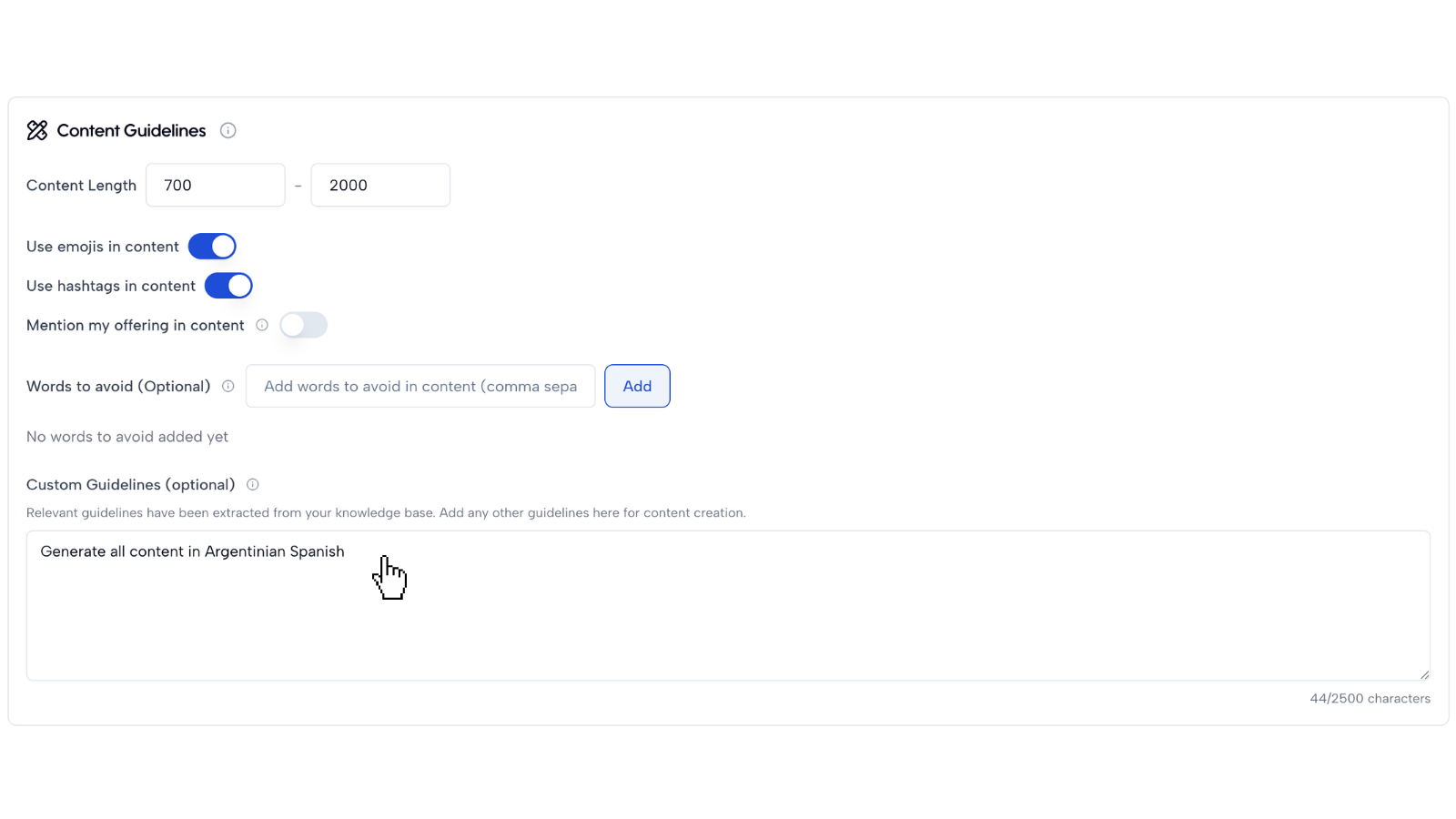
Step 4: Add language instructions
In the custom guidelines for each channel, write the language instruction clearly. Examples:
- Generate all GEO content in Portuguese for a Portugal-based audience.
- Generate LinkedIn posts in English, using terminology common in the UK market.
- Generate X posts in German for a DACH audience.
- Generate content in French and avoid English-language idioms.
- Write all content in Spanish for a Latin American audience.
These instructions help Axy.digital generate content in the right language and local context.
Step 5: Let Axy.digital detect your existing language
Axy.digital also detects the language on your website and in your uploaded materials. This includes:
- Website pages
- Product pages
- Blog posts
- Documentation
- Whitepapers
- Decks
- Case studies
- Social content
- Other uploaded resources
If your site and materials are in a specific language, Axy.digital aligns the engine and campaigns with that language.
This helps maintain consistency across your existing brand presence and future generated content.
Step 6: Review generated content for local fit
After updating geography or language settings, review new generated content to make sure it fits your market. Check:
- Language
- Tone
- Local terminology
- Regional spelling
- Market examples
- Competitor references
- Cultural relevance
- CTA
- Search intent
- Industry wording
For example, content for the US market may use different phrasing, examples, or search behavior than content for the UK, Portugal, Singapore, or Germany.
Step 7: Update settings as your market changes
You can update geography and language settings anytime. Update them when:
- You enter a new country
- You launch in a new region
- You start targeting a new language audience
- Your ICP changes
- You create a local campaign
- You want different channels to use different languages
- You want Axy.digital to generate region-specific content
Future campaigns will use the updated strategy and channel guidelines.
FAQ
Where do I set geographic focus?
Go to: Marketing Strategy → Audience → Geographic Focus. This tells Axy.digital which market or region your engine should prioritize.
Where do I set content language?
Go to: Channel Plan → Custom Guidelines. Add the language you want that channel's content to be generated in.
Can different channels use different languages?
Yes. You can set language instructions per channel. For example, GEO content can be in Portuguese while LinkedIn content stays in English.
Does Axy.digital detect language automatically?
Yes. Axy.digital detects the language on your website and in your uploaded materials, then aligns the engine and campaigns with that language.
Is this useful for local market campaigns?
Yes. Geography and language customization is especially useful for brands marketing to local markets, regional audiences, or multilingual customer segments.
Best practices
Set geography before generating campaigns
Geographic focus helps Axy.digital prioritize the right market context.
Be specific about the language
Write clear instructions like "Generate all GEO content in Portuguese" or "Use German for DACH LinkedIn posts."
Use local terminology
Add regional phrasing or industry terms if your market uses specific language.
Review the first few outputs
Check that the language, tone, and local references feel right.
Update settings for expansion markets
When entering a new geography, update your audience and channel guidelines so the engine adapts.