
Core Product Tutorials
How to Generate X Posts and Threads in Axy.digital
Axy.digital helps you generate X posts and threads from campaign briefs already suggested inside your workspace. Instead of living on the timeline or guessing what to post, Axy.digital uses market intelligence signals, social trends, news headlines, AI visibility gaps, competitor updates, product updates, and your approved strategy to suggest X-ready content opportunities. These opportunities appear as campaign briefs in Workspace → Proposed Briefs. When you see an X brief you want to create, click Generate. Axy.digital creates the post or thread, moves it to your Marketing Calendar, and lets you review, edit, approve, schedule, publish, or export it from there.
On this page
Before you start
Make sure you have:
- Completed onboarding
- Approved your marketing strategy
- Reviewed your X plan
- Configured your X guidelines
- Connected or added your X account
- Added founder voice or brand voice context where relevant
- Selected competitors
- Added relevant resources to your knowledge base
Your X output is strongest when your channel guidelines are specific.
For example, define preferred post length, thread style, tone, words to avoid, use of hashtags, level of technical depth, and whether content should be sharp, contrarian, educational, product-led, or founder-led.
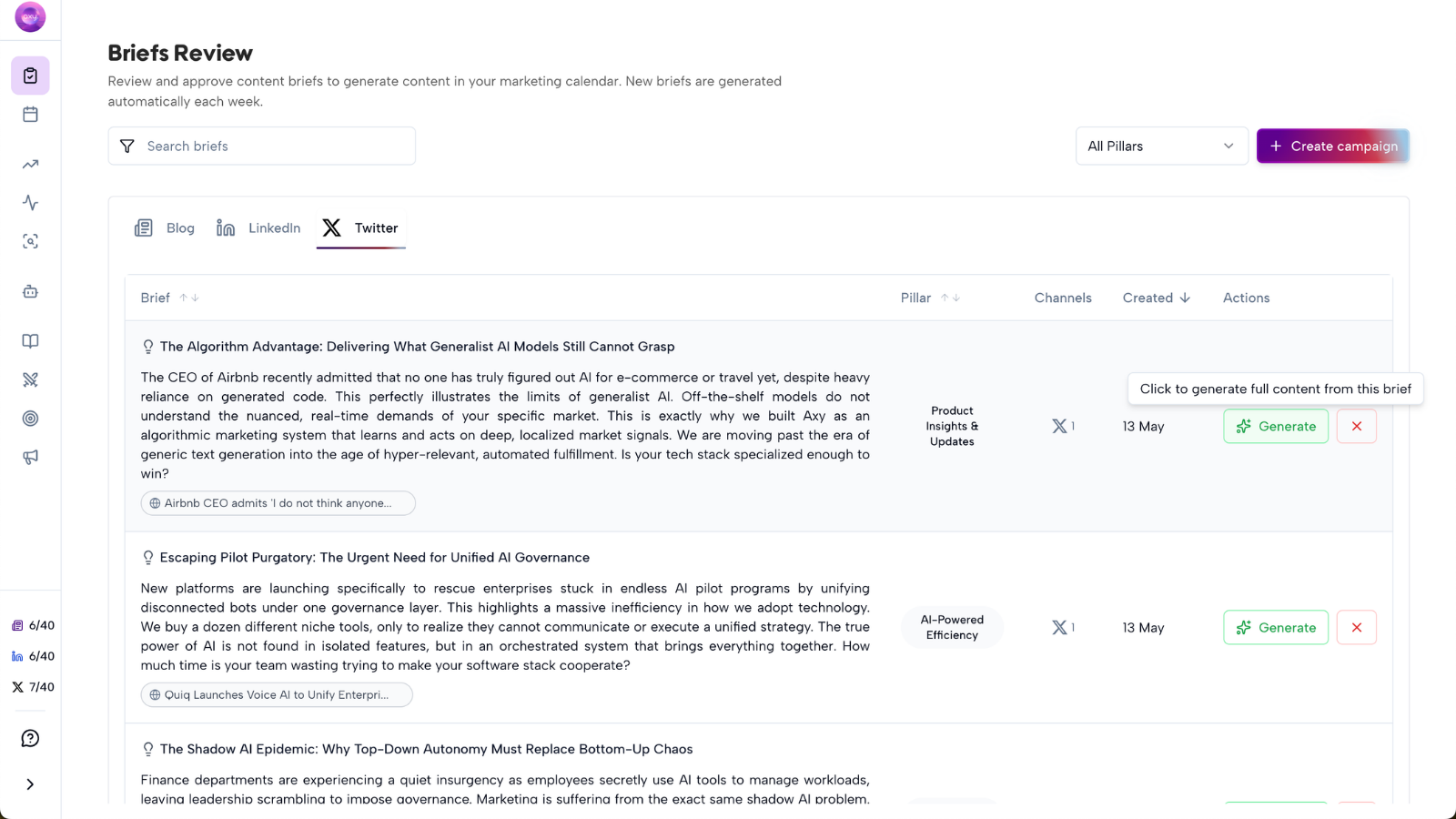
Step 1: Open Proposed Briefs
Go to your workspace and open Proposed Briefs. This is where Axy.digital surfaces campaign ideas it has already identified for your brand.
An X brief can be generated from:
- A market intelligence signal
- A social trend
- A news headline
- A competitor update
- An AI visibility gap
- A search demand opportunity
- A GEO article
- A product update
- A case study
- A weekly recommendation
Each brief appears because Axy.digital has identified a relevant opportunity for your business.
Step 2: Review the X brief
Open the X brief you want to review. The brief includes:
- Post or thread topic
- Source signal
- Target audience
- Suggested angle
- Why this post matters
- Related trend or narrative
- Suggested CTA
- Campaign connection
Use the brief to decide whether the post or thread is worth generating. Ask:
- Is this timely?
- Is this relevant to our audience?
- Does this fit our X voice?
- Is there a clear point of view?
- Is this worth responding to now?
- Does this connect to a broader campaign?
You do not need to choose the post format manually. Axy.digital automatically generates the right X format based on the brief, your strategy, your X plan, and your channel guidelines.
Step 3: Click Generate
If the brief looks useful, click Generate. Axy.digital generates X content using:
- The proposed brief
- Your approved marketing strategy
- Your X plan
- Your X guidelines
- Your brand or founder voice
- Your knowledge base
- The source signal or campaign context
- Previous performance data where available
Axy.digital automatically chooses the right format for X. This can include:
- Short posts
- Threads
- Founder commentary
- Market commentary
- Product updates
- Educational breakdowns
- Launch posts
- Community posts
- Campaign extensions
The content is automatically optimized for X based on your configured guidelines. Once generated, the post or thread is added to your Marketing Calendar.
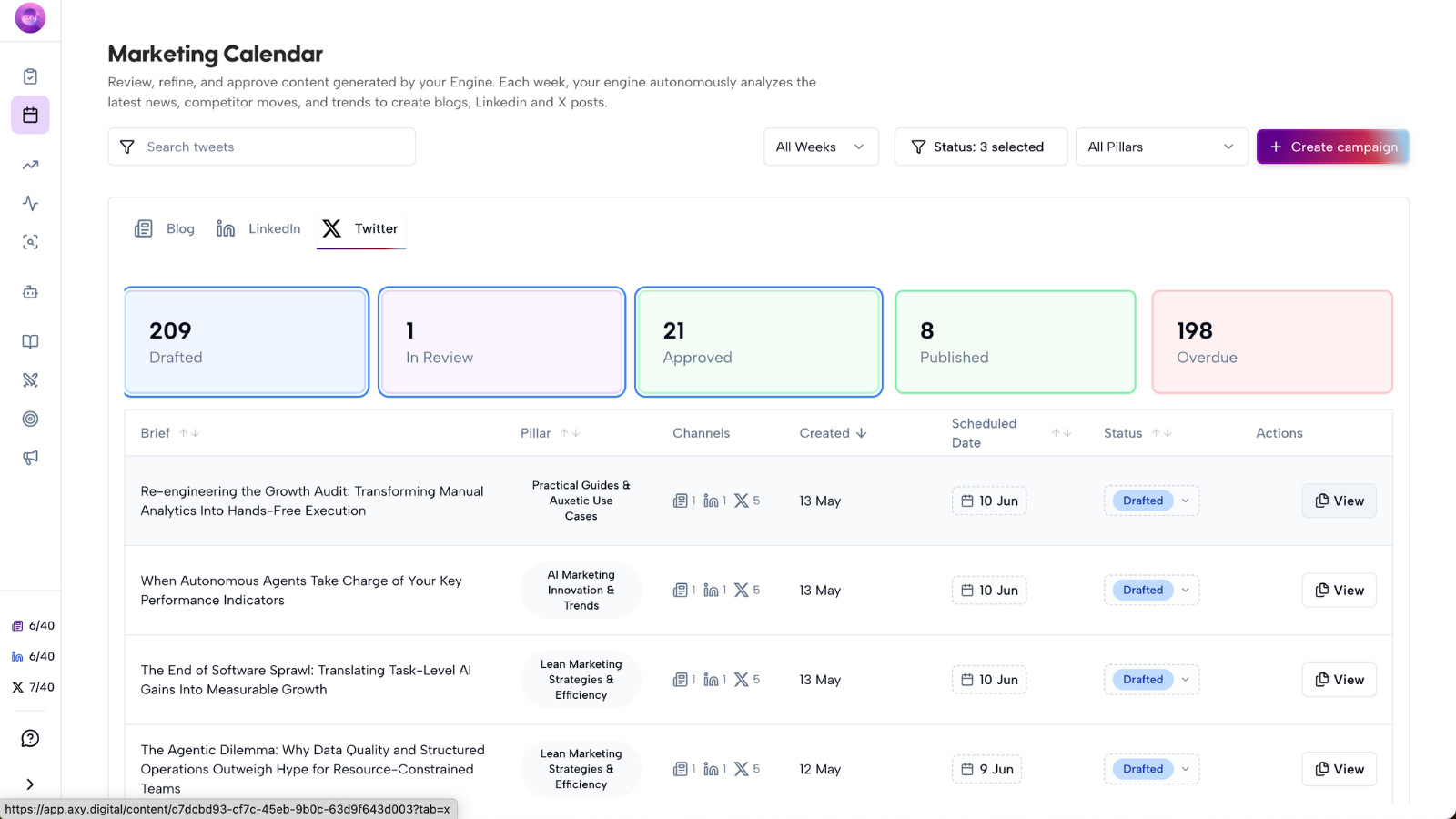
Step 4: Open the content in your Marketing Calendar
Go to your Marketing Calendar to view the generated X post or thread. From the calendar, you can:
- Open the post or thread draft
- Review the content
- Edit the content
- Approve it
- Schedule it
- Publish it
- Export it
- Save it for later
If the X content is part of a larger campaign, the calendar shows it alongside related GEO articles and LinkedIn posts.
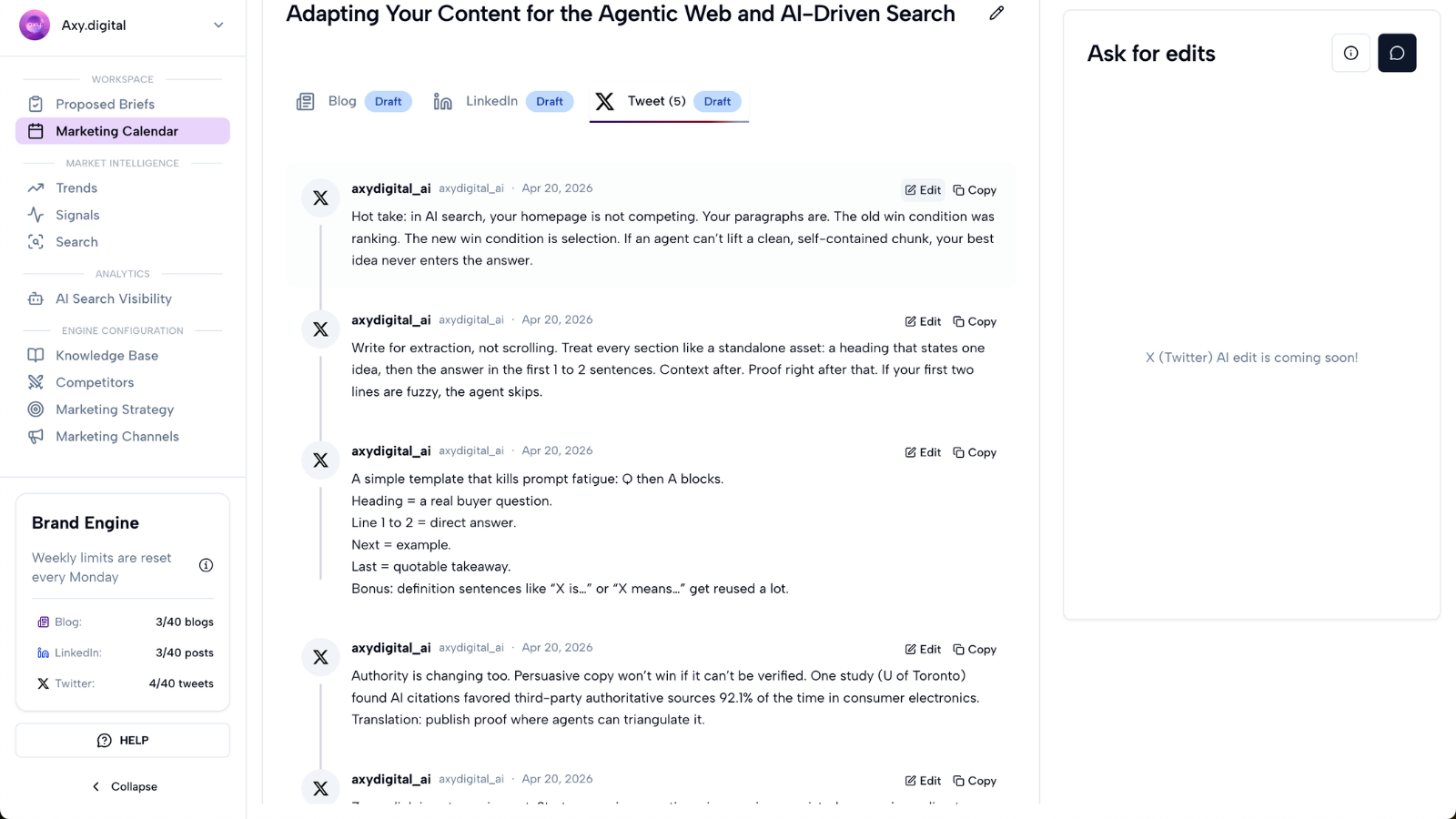
Step 5: Review the generated post or thread
Review the content before publishing. Check:
- Is it concise?
- Does it sound natural?
- Is the hook strong?
- Does it avoid corporate language?
- Does it follow your X guidelines?
- Does it avoid banned words or phrases?
- Is the thread structured clearly, if a thread was generated?
- Does it avoid over-explaining?
- Does it add a clear point of view?
- Is the CTA appropriate?
X content should feel timely, sharp, and easy to engage with.
Step 6: Make AI edits
You can use AI edits to quickly improve specific sections of the X post or thread. To make an AI edit:
- Highlight the section of text you want to change.
- Click the AI Edit button that appears.
- Write your edit instruction.
- Review the updated text.
- Accept the change if it looks right.
You can use AI edits to:
- Make the post shorter
- Make the hook sharper
- Make the tone more direct
- Make the post more opinionated
- Simplify the language
- Remove corporate phrasing
- Turn a paragraph into a thread
- Tighten a thread
- Add a clearer takeaway
- Rewrite in founder voice
- Make the CTA less salesy
- Make the post more timely or trend-aware
Example instructions:
- Make this sharper and more concise.
- Rewrite this as a 5-part thread.
- Make this sound less corporate and more founder-led.
- Cut this down to one punchy X post.
AI edits let you refine the content without rewriting it manually.
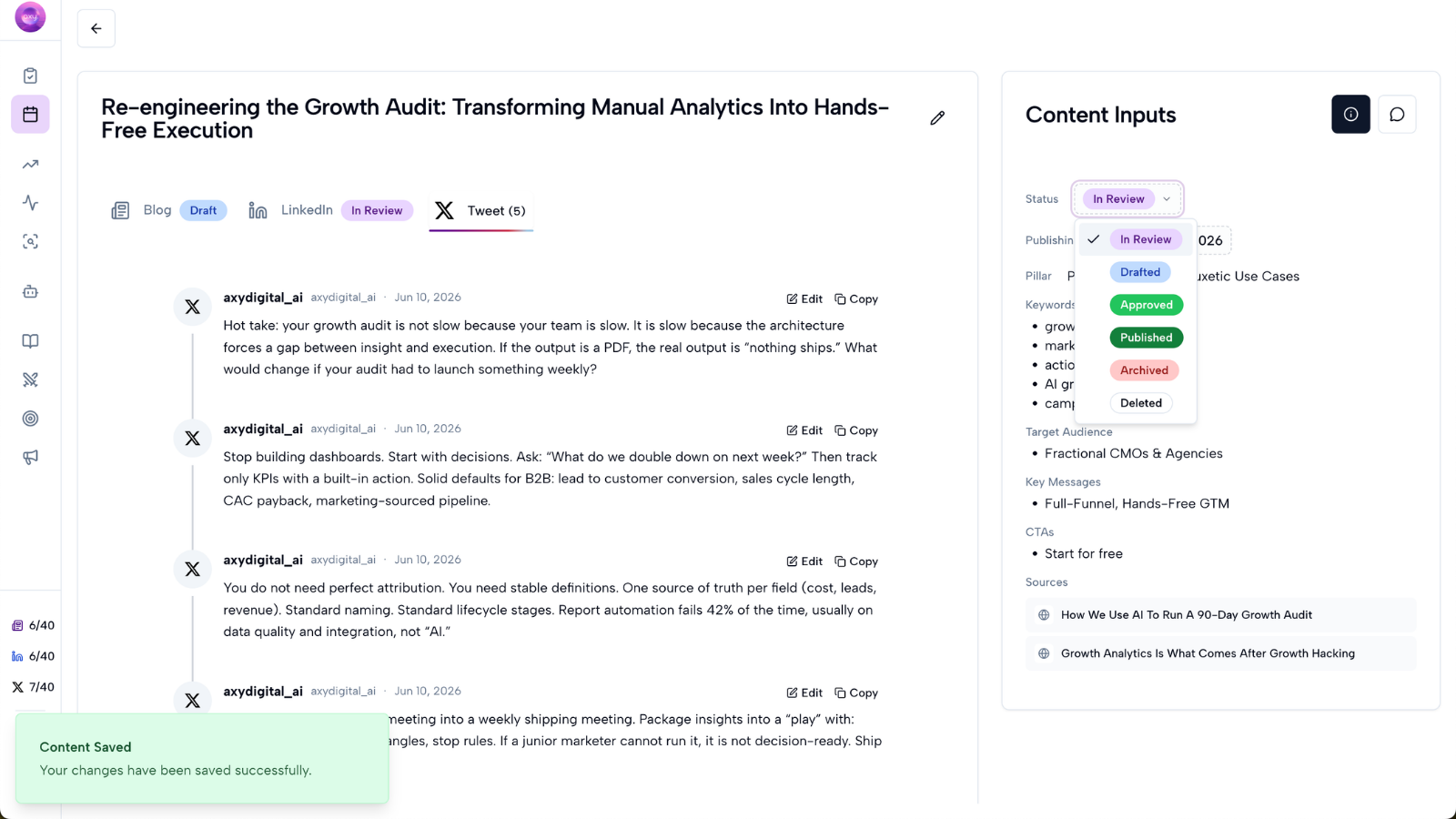
Step 7: Approve, schedule, publish, or export
Once the post or thread is ready, use the Marketing Calendar to move it through your publishing workflow. You can:
- Approve the content
- Schedule it
- Publish it
- Export it
- Save it for later
- Coordinate it with other campaign assets
Use the calendar to manage X content alongside GEO articles, LinkedIn posts, custom campaigns, and other generated assets.
Step 8: Track performance
After publishing, Axy.digital uses performance data to improve future recommendations. Track:
- Impressions
- Engagement
- Reposts
- Replies
- Clicks where available
- Topic performance
- Format performance
- Thread performance
- Campaign performance
Axy.digital uses this data to improve future X briefs and generated posts.
FAQ
Do I need to find X trends myself?
No. Axy.digital surfaces social trends, news headlines, competitor updates, market intelligence signals, and campaign opportunities inside Proposed Briefs. You only need to review the brief and click Generate when you want to create the post or thread.
Do I need to choose whether something is a post or a thread?
No. Axy.digital automatically chooses the right format based on the brief, your X plan, your marketing strategy, and your channel guidelines.
It adapts the content for X, so you do not need to manually decide whether something should be a short post, thread, product update, market commentary, or campaign extension.
Can I edit the X content with AI?
Yes. Highlight the section of text you want to edit, click AI Edit, and write instructions for how you want the text changed.
Where does the generated X content go?
Generated X posts and threads are added to your Marketing Calendar. From there, you can review, edit, approve, schedule, publish, or export the content.
How do I avoid generic AI posts on X?
Configure your X guidelines clearly. Add words to avoid, tone preferences, examples of strong posts, founder opinions, topics to avoid, preferred post length, thread style, level of technical depth, and hashtag preferences.
Best practices
Review Proposed Briefs regularly
Axy.digital continuously suggests X opportunities based on market activity.
Move quickly on timely narratives
X rewards speed, relevance, and clarity.
Keep posts sharper than LinkedIn
X content should usually be more concise and direct.
Use AI edits for specific improvements
Highlight the section that needs work and give Axy.digital a clear instruction.
Avoid over-formatting
Do not make posts feel too polished or corporate.
Let performance guide future posts
Use analytics to understand which topics and formats are worth repeating.