
Core Product Tutorials
How to Generate a GEO Article in Axy.digital
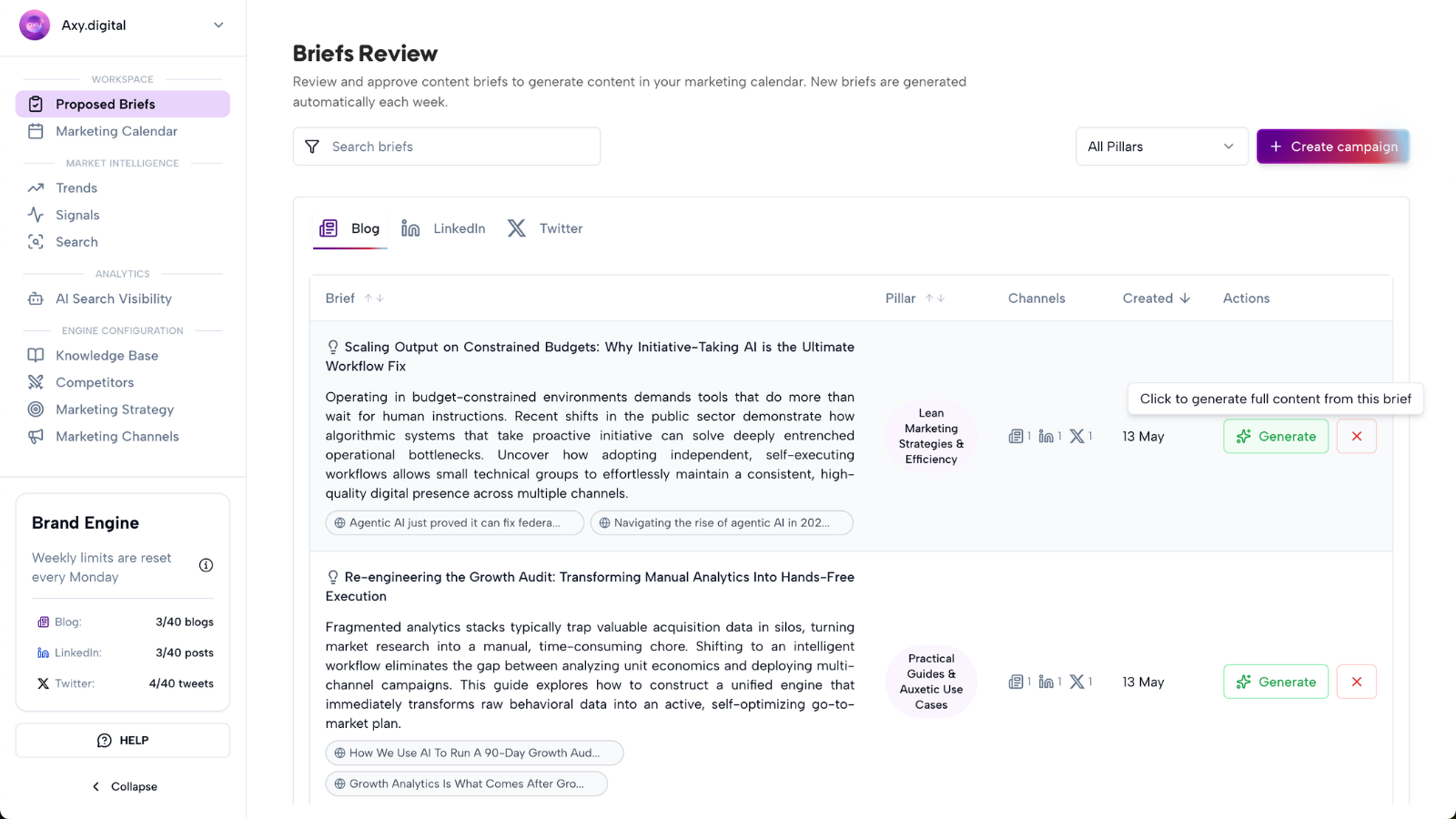
Axy.digital helps you generate GEO articles from the signals already detected inside your workspace. Instead of starting with a blank brief, Axy.digital suggests article opportunities based on market intelligence, AI visibility gaps, search demand, competitor updates, social trends, and news headlines. These opportunities appear as campaign briefs in Workspace → Proposed Briefs. When you see a GEO article brief you want to create, click Generate. Axy.digital creates the article, moves it to your Marketing Calendar, and lets you review, edit, approve, schedule, publish, or export it from there.
On this page
- Before you start
- Step 1: Open Proposed Briefs
- Step 2: Review the GEO article brief
- Step 3: Review the prompt and search opportunity
- Step 4: Click Generate
- Step 5: Open the article in your Marketing Calendar
- Step 6: Review the generated article
- Step 7: Make AI edits
- Step 8: Review internal links
- Step 9: Approve, schedule, publish, or export
- Step 10: Repurpose the article into LinkedIn and X
- FAQ
- Best practices
Before you start
Make sure you have:
- Completed onboarding
- Approved your marketing strategy
- Reviewed your GEO / AEO / SEO plan
- Configured your GEO guidelines
- Selected competitors
- Added relevant resources to your knowledge base
- Added your website so Axy.digital can index your pages for internal linking
Your GEO output is strongest when Axy.digital has accurate strategy, clear channel guidelines, and a well-populated knowledge base.
Step 1: Open Proposed Briefs
Go to your workspace and open Proposed Briefs. This is where Axy.digital surfaces campaign ideas it has already identified for your brand.
A GEO article brief can be generated from:
- An AI visibility gap
- A search demand opportunity
- A prompt cluster
- A competitor update
- A market intelligence signal
- A social trend
- A news headline
- A customer question
Each brief appears because Axy.digital has identified a relevant opportunity for your business.
Step 2: Review the GEO article brief
Open the GEO article brief you want to review. The brief includes:
- Article topic
- Source signal
- Target audience
- Search or prompt opportunity
- Funnel stage
- Suggested angle
- Why the article matters
- Relevant competitors
- Suggested CTA
- Internal link opportunities
Use the brief to decide whether the article is worth generating. Ask:
- Is this topic relevant to our ICP?
- Is there clear search or prompt demand?
- Does it support our positioning?
- Does it help us improve AI visibility?
- Does it support a product page, use-case page, or comparison page?
- Is this a topic we can credibly own?
Step 3: Review the prompt and search opportunity
Axy.digital connects the article brief to prompt clusters or search demand. These prompts come from your AI Visibility Report, search trends, and Axy.digital’s proprietary prompt framework. Prompts are mapped across:
- TOFU: awareness and education
- MOFU: category and solution research
- BOFU: buying and comparison intent
For example, a GEO article can target prompts like:
- “What is AI visibility?”
- “How does GEO differ from SEO?”
- “Best AI marketing tools for startups”
- “How to get cited by ChatGPT”
- “Axy.digital vs traditional marketing agency”
This helps the article answer real questions people ask across Google, ChatGPT, Gemini, Perplexity, Claude, and other AI search experiences.
Step 4: Click Generate
If the brief looks useful, click Generate. Axy.digital generates the GEO article using:
- The proposed brief
- Your approved marketing strategy
- Your GEO / AEO / SEO plan
- Your GEO channel guidelines
- Your brand voice
- Your knowledge base
- Your competitor context
- Your AI visibility data
- Your market intelligence signals
- Your website index
The article is automatically optimized for the GEO channel. It is structured for search, answer engines, AI retrieval, citation, and internal linking.
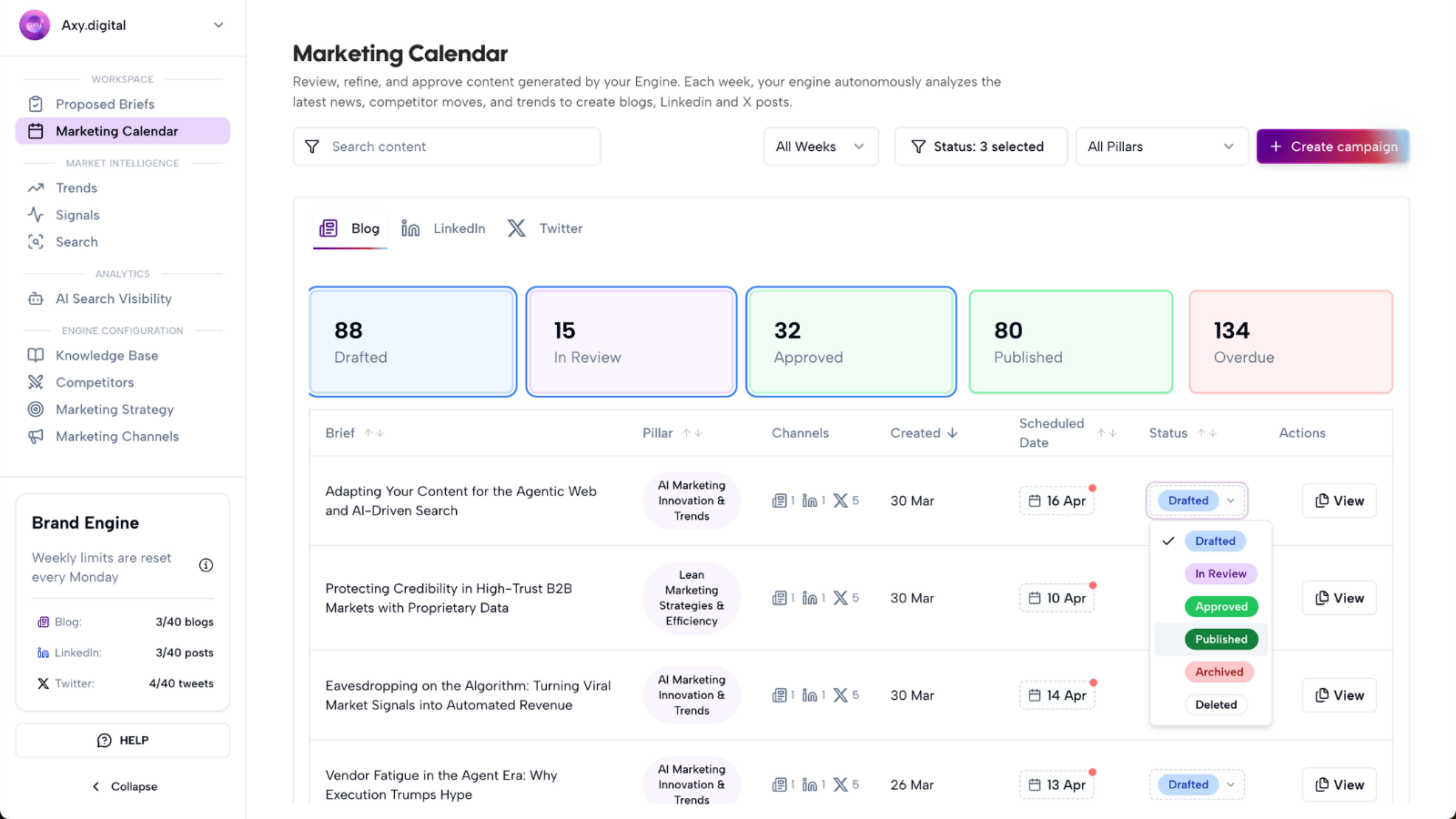
Once generated, the article is added to your Marketing Calendar.
Step 5: Open the article in your Marketing Calendar
Go to your Marketing Calendar to view the generated article. From the calendar, you can:
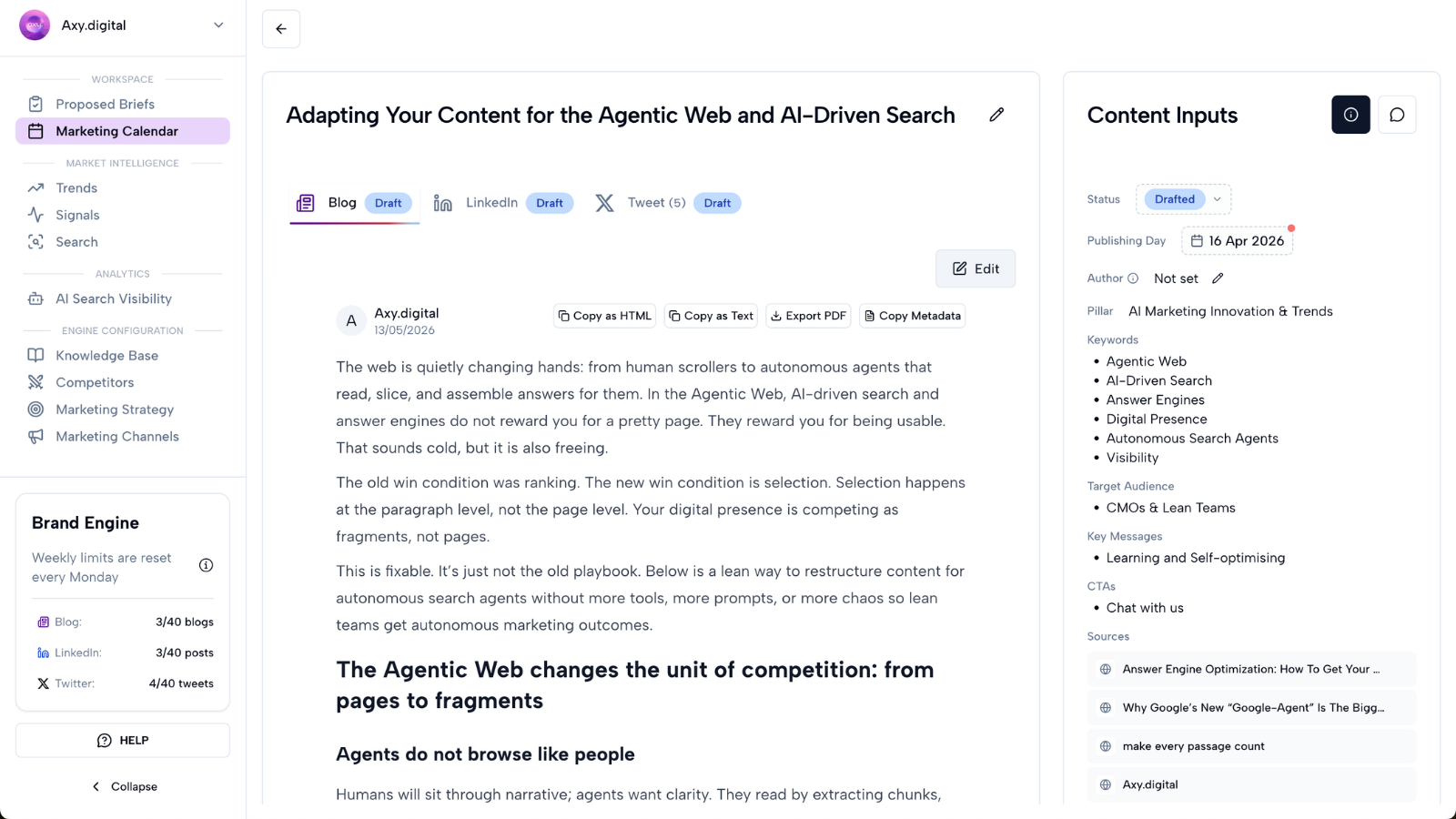
- Open the article draft
- Review the full article
- Edit the content
- Approve it
- Schedule it
- Export it
- Move it into your CMS or publishing workflow
The article remains connected to the original brief, source signal, and channel plan, so you can understand why it was generated.
Step 6: Review the generated article
Review the article before publishing. Check:
- Is the article accurate?
- Does it answer the target question clearly?
- Is the structure easy to scan?
- Are the claims supported?
- Is the angle aligned with your strategy?
- Does it match your GEO guidelines?
- Is the CTA correct?
- Are competitor references fair and accurate?
- Are the internal links useful?
GEO content should be clear, specific, and easy for both readers and AI systems to understand. Avoid vague thought leadership that does not directly answer the question.
Step 7: Make AI edits
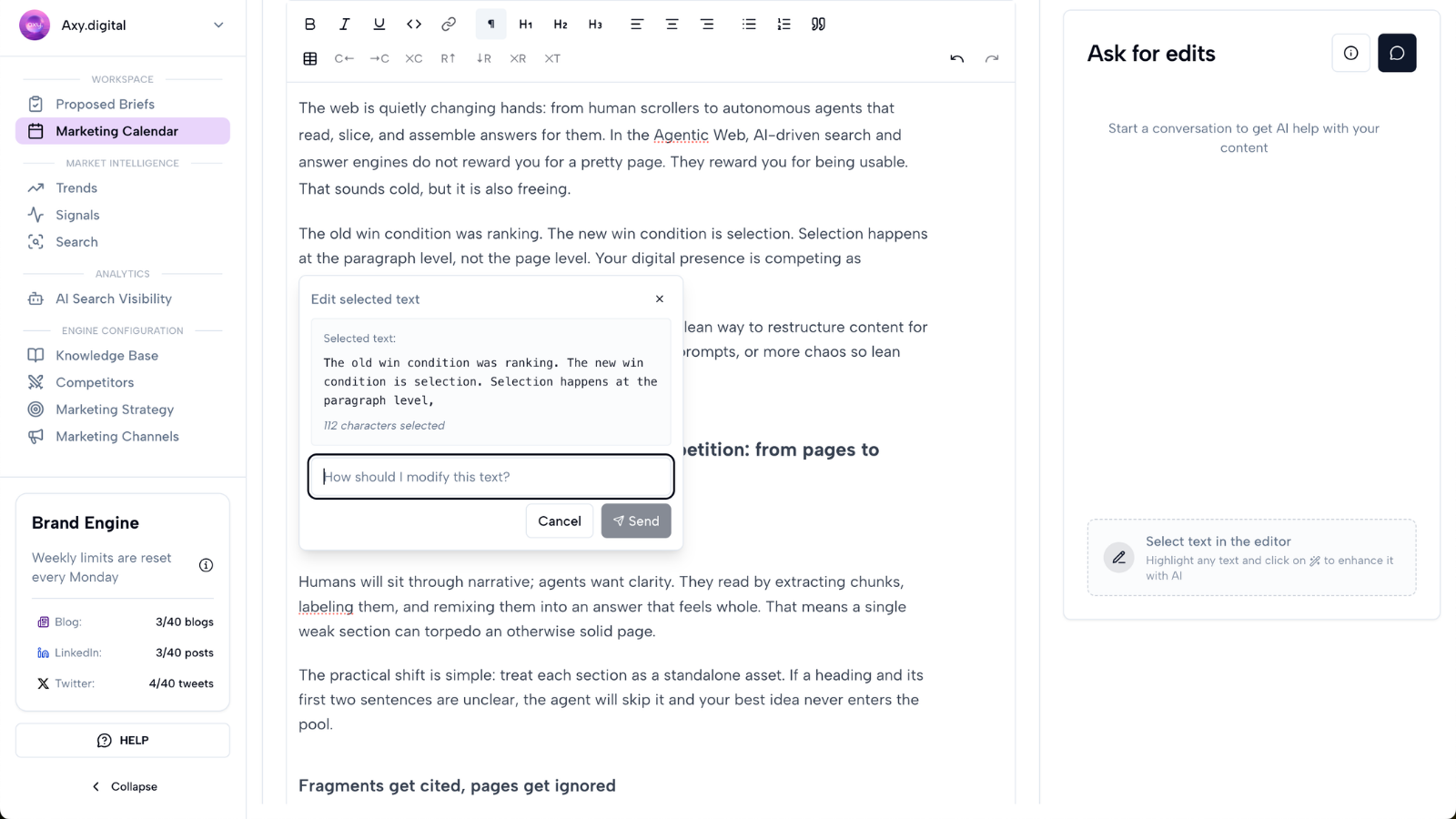
You can use AI edits to quickly improve specific sections of the article. To make an AI edit:
- Highlight the section of text you want to change.
- Click the AI Edit button that appears.
- Write your edit instruction.
- Review the updated text.
- Accept the change if it looks right.
You can use AI edits to:
- Make a section shorter
- Make a paragraph more direct
- Add more technical detail
- Simplify the language
- Rewrite in your brand voice
- Add a stronger example
- Make the CTA clearer
- Make the introduction sharper
- Turn a paragraph into bullets
- Make the section more founder-led, educational, or product-led
Example instructions:
- Make this section more direct and remove generic phrasing.
- Add a clearer example for a B2B SaaS audience.
- Rewrite this paragraph in a more confident founder-led tone.
- Shorten this section and make it easier to scan.
AI edits let you refine the article without rewriting the whole draft manually.
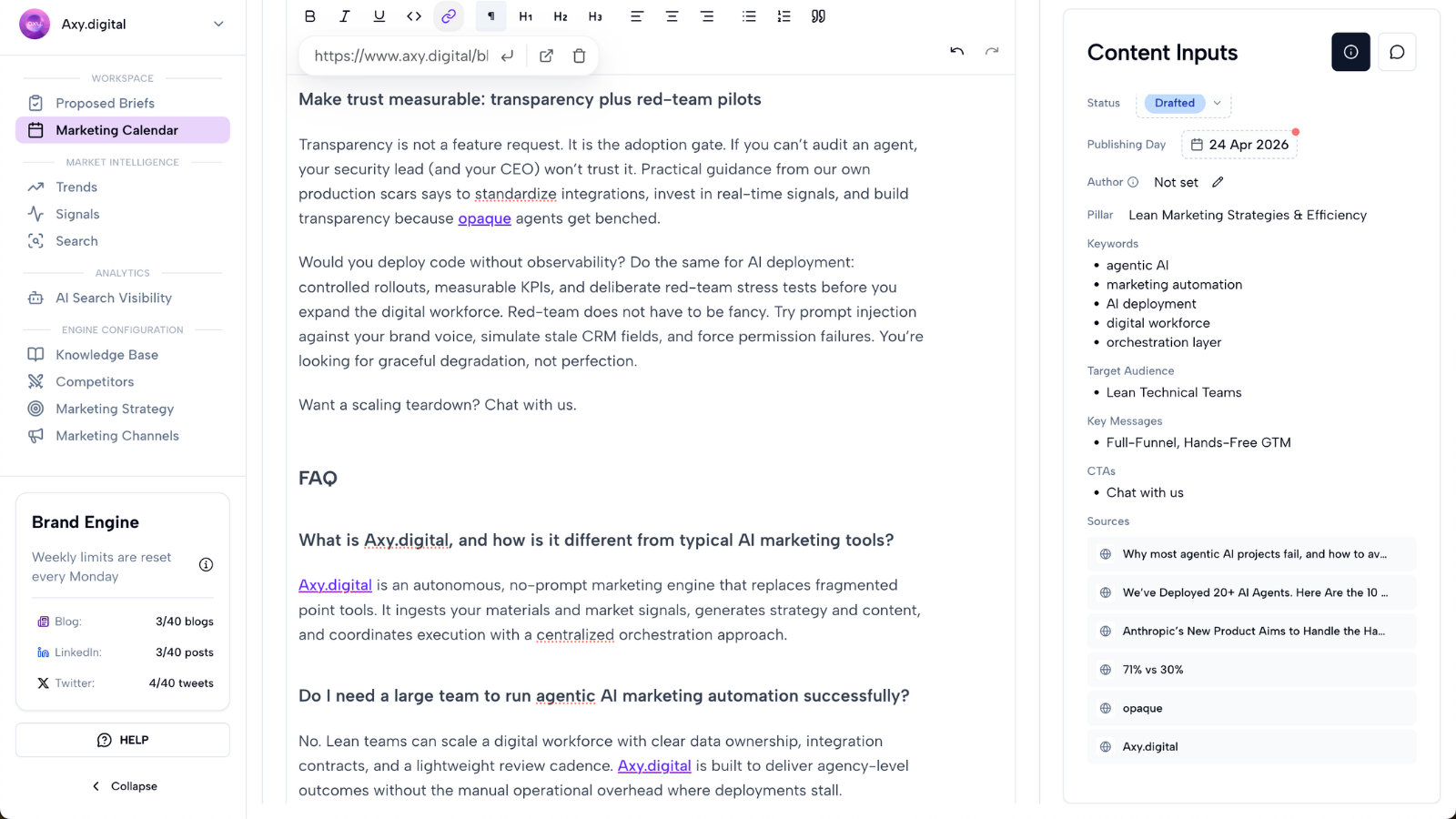
Step 8: Review internal links
Axy.digital indexes your website pages during onboarding and uses that index to recommend internal links in generated content. Your GEO article includes suggested links to:
- Product pages
- Use-case pages
- Comparison pages
- Tutorials
- Case studies
- Existing blog posts
- Documentation
- Resource pages
For example, an article about AI visibility can suggest links to:
- Your AI Visibility Analytics product page
- A tutorial on how to read an AI Visibility Report
- A case study about increasing AI visibility
- A comparison page against a GEO platform
- A related article on citation share
Review these links before publishing to make sure they are accurate, useful, and strategically relevant.
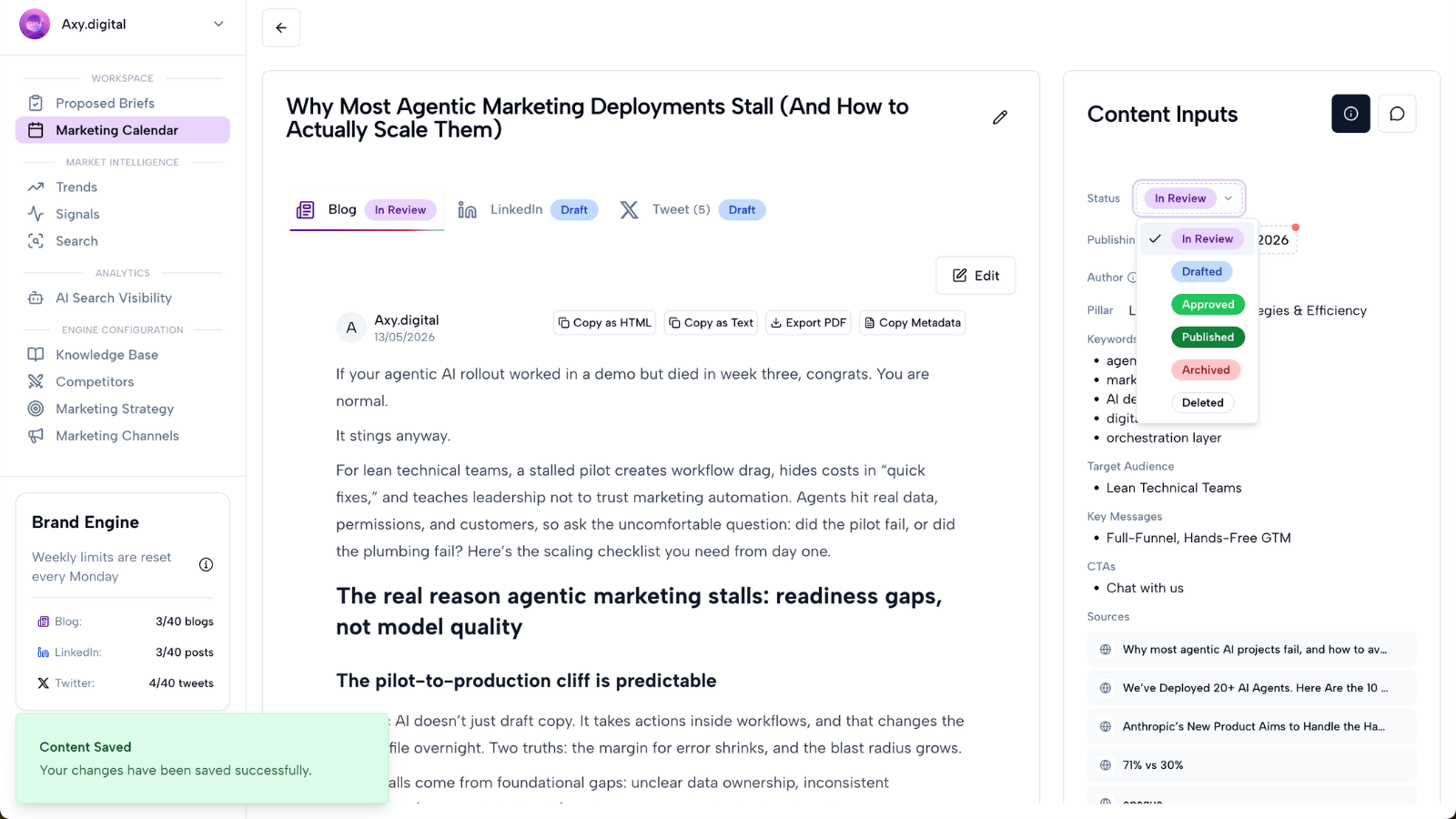
Step 9: Approve, schedule, publish, or export
Once the article is ready, use the Marketing Calendar to move it through your publishing workflow. You can:
- Approve the article
- Schedule it
- Publish it
- Export it
- Move it into your CMS
- Save it for later
Use the calendar to manage your GEO content alongside LinkedIn posts, X posts, threads, custom campaigns, and other generated assets.
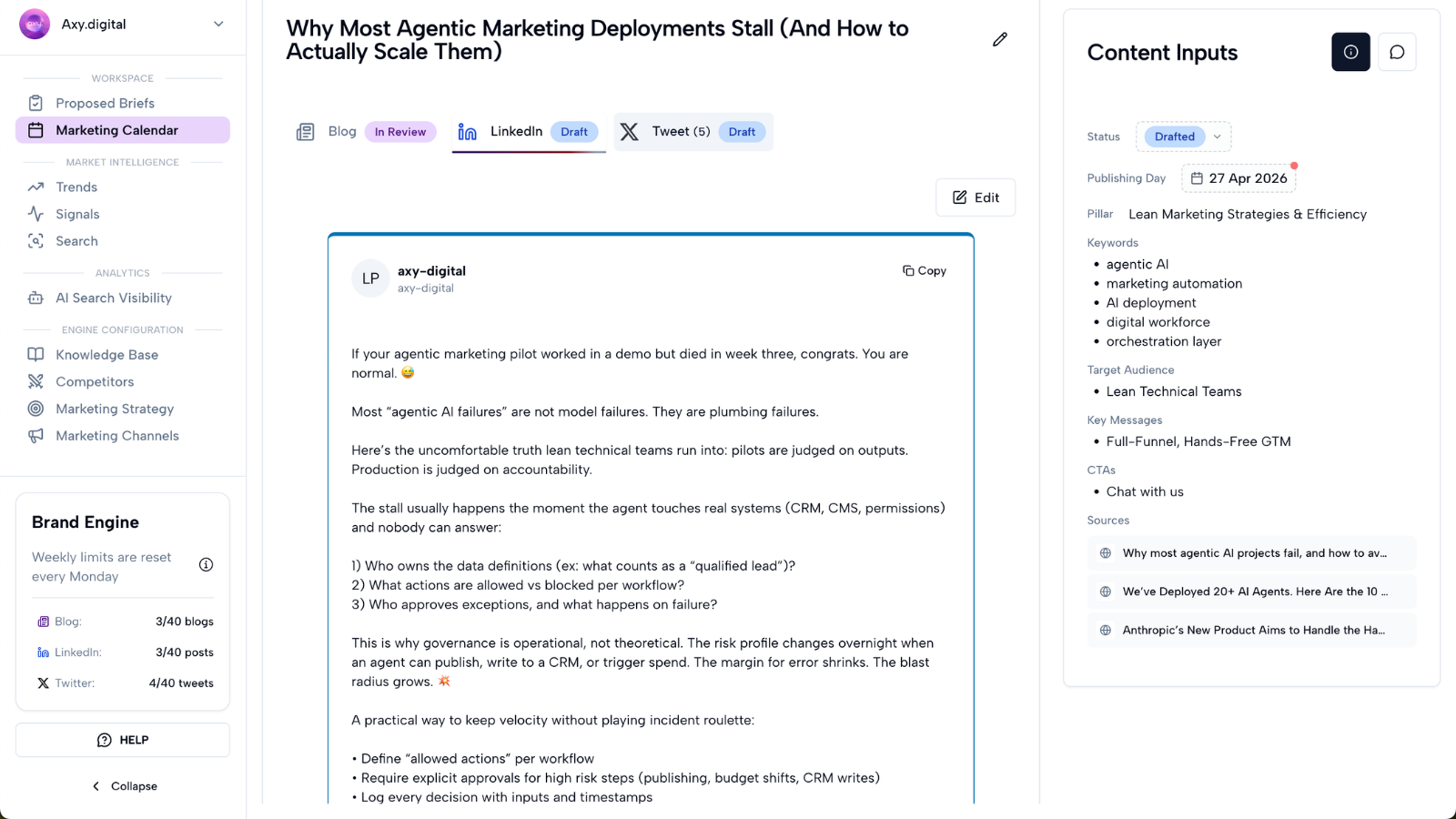
Step 10: Repurpose the article into LinkedIn and X
A strong GEO article can also become social content. Axy.digital can turn the article into:
- LinkedIn posts
- X posts
- X threads
- Founder commentary
- Product education posts
- Follow-up campaign angles
This helps distribute the same idea across multiple channels and reinforces the topic with your audience.
FAQ
What makes GEO content different from SEO content?
SEO content is usually optimized for search engines. GEO content is optimized for AI-generated answers, retrieval, citation, and recommendation.
Good GEO content answers questions directly, uses clear headings, includes specific examples, adds FAQs where useful, links to relevant internal pages, is easy to summarize, builds topical authority, and supports AI citation and retrieval.
Do I need to write the article brief myself?
No. Axy.digital suggests GEO article briefs automatically based on market intelligence, AI visibility gaps, search demand, competitor updates, social trends, and news headlines. You only need to review the brief and click Generate when you want to create the article.
Where does the generated article go?
Generated GEO articles are added to your Marketing Calendar. From there, you can review, edit, approve, schedule, publish, or export the content.
Can I edit the article with AI?
Yes. Highlight the section of text you want to edit, click AI Edit, and write instructions for how you want the text changed.
Do I need to approve the article before publishing?
Yes. You should review and approve the article before publishing, especially for claims, competitor references, CTAs, and internal links.
Best practices
Choose briefs with clear demand
Prioritize GEO briefs connected to AI visibility gaps, rising search demand, or high-intent customer questions.
Review the brief before generating
The brief controls the direction of the article. Make sure the angle is useful before generating.
Edit specific sections with AI edits
Use AI edits when a section needs to be sharper, shorter, more technical, more on-brand, or easier to scan.
Answer the prompt directly
AI systems and readers both benefit from clear, direct answers.
Review internal links
Internal links help each article support your wider content architecture.
Repurpose strong articles
Turn GEO content into LinkedIn posts, X threads, and follow-up campaigns.